How-to · iPhone video
How to add a speed overlay to iPhone video
The iPhone Camera app doesn’t save your speed. AtlasCam does. It shows a live speedometer while you film, then exports the clip with your speed, route map and altitude already in the shot.
Get AtlasCam freeStep by step
-
Install AtlasCam and allow location
Download AtlasCam from the App Store. It’s free and runs on iOS 18 or later. Allow location access when it asks, because the speed comes from your iPhone’s GPS. To use km/h, turn on Use Metric Units in Settings.
-
Choose Video and check the HUD
In Video mode, the viewfinder shows your speed, altitude, compass, map and the weather. Drag any of them to move it. The speedometer comes in four styles: Digital, GT Dial, Rally Arc and Instrument.
-
Mount the phone and record
Use a handlebar, chest or dash mount somewhere the phone has a clear view of the sky, which keeps GPS strong. Wait a few seconds for a GPS lock, then tap record. AtlasCam logs speed, location and altitude for the whole clip.
-
Open the clip and tap Edit layout & export
Open the Library from the top bar and pick your clip. Tap Edit layout & export to move the overlays, change the speedometer style and preview them on your footage.
-
Pick a format and export
Choose Original, Vertical (9:16 for Reels, TikTok and Shorts), Square or Phone Screen. The speed and map are drawn into the video itself, so the clip looks the same wherever you post it.
Just want a 15-second reel?
Open the ride and tap Make Reel. AtlasCam finds your fastest moment, or a moment you marked during the ride, and cuts a vertical clip around it. The speed and route animate in as it plays.
It’s the quickest way to go from a long ride to something you can post, and you don’t have to scrub through the footage yourself.
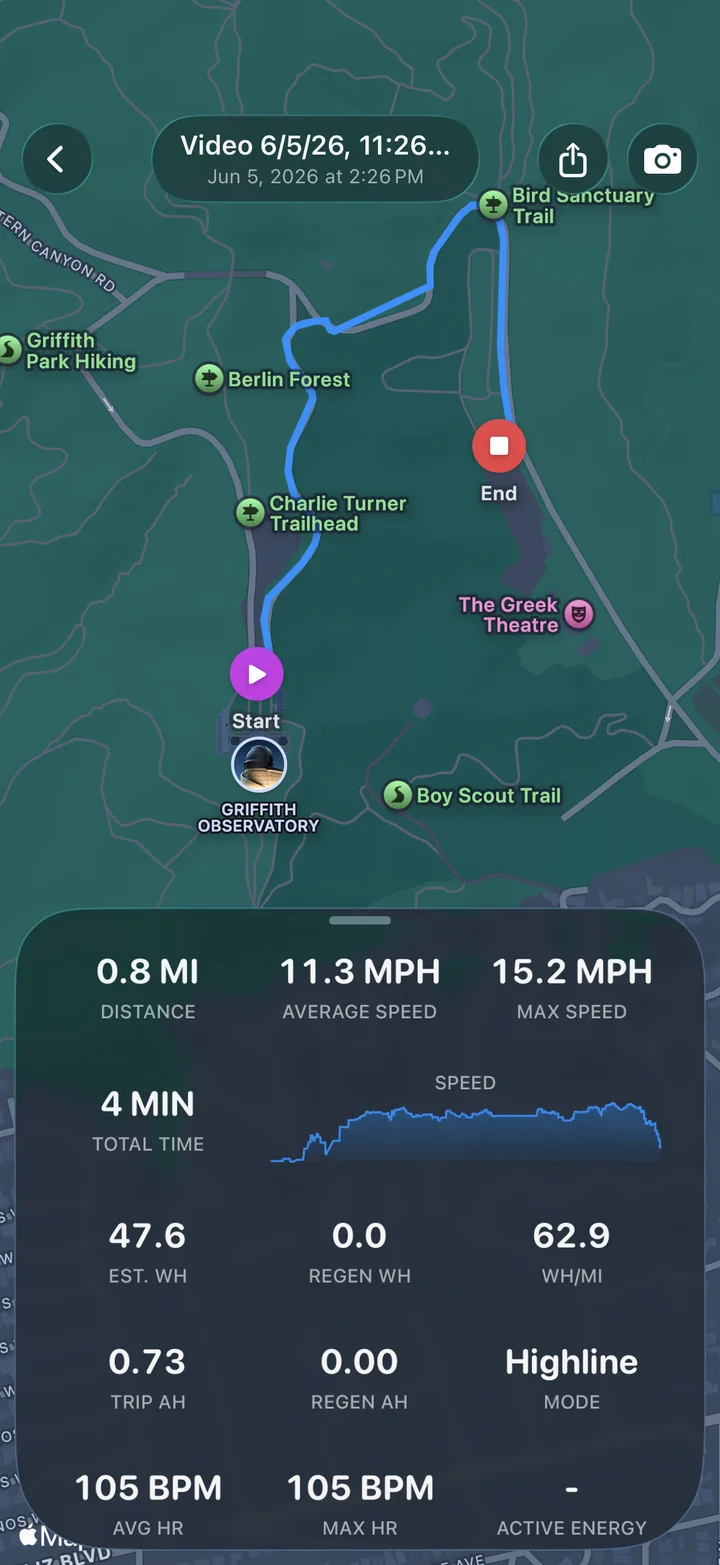
What else can go in the shot
Speed is usually the reason people start, but the same clip can carry more of the ride.
- Route mapA live mini-map that follows you, with your track drawn as you go.
- AltitudeCurrent elevation, so a climb shows up as a number and not just a feeling.
- CompassYour heading, shown as a dial.
- WeatherTemperature and conditions where you filmed.
- Heart rateLive BPM and calories from the AtlasCam Apple Watch app.
- Board statsBattery, current and temperatures from a supported Onewheel or VESC board. How to set it up.
Getting an accurate reading
The speed comes from your iPhone’s GPS, which is reliable when the phone can see the open sky. It gets jumpy in tunnels, under bridges and between tall buildings, then settles again once you’re back in the open.
The speedometer dial also adjusts its range to what you’re doing, so a board ride and a highway drive don’t share the same scale.
Free or Pro? Recording with the speed overlay and exporting the clip are free. Free exports include a small “Shot on AtlasCam” badge. AtlasCam Pro removes the badge and unlocks styling controls like overlay size and opacity. Pro costs $2.99 a month, $29.99 a year or $79.99 once, and there’s a 7-day free trial that doesn’t ask for payment.
Questions
Can I add a speed overlay to a video I already recorded?
Not with AtlasCam. It overlays the speed it logged while recording the clip, so the video has to be filmed in AtlasCam. For footage from the Camera app, a GoPro or a drone, you need a desktop tool that syncs a separate GPS file. See how AtlasCam compares with Telemetry Overlay.
Is AtlasCam free?
Yes. Recording with the speed overlay and exporting the clip are free. Free exports include a small “Shot on AtlasCam” badge. Pro removes it and adds styling controls for $2.99 a month, $29.99 a year or $79.99 once.
Can the speedometer show km/h?
Yes. Turn on Use Metric Units in Settings, and the speedometer, altitude and distance switch to km/h and metres.
Does it work without cell service?
Recording and GPS speed work without cell service. The map and weather need a data connection to load.
Is there an Android version?
AtlasCam for Android is coming soon. The iPhone app is available now and needs iOS 18 or later.